A guide to this portfolio: themes, backgrounds, and appearance
Welcome to my portfolio. You can explore my work, read project case studies, and learn about my experience in English or Persian. You can also change how the website looks—from a quiet page for reading to a moving field of stars.
This guide explains where everything is, what each appearance control changes, and how to return to a familiar view. No account is needed. The screenshots show the actual website; select any image to open a larger version. Use Zoom in to inspect the details, then Close image or Escape to return to the same place in the article.
A quick start
If you only want to browse, start with these three steps:
- Open Projects for detailed examples of my work, or Experience for my professional background.
- Use the globe button to choose English or Persian. On a phone, open the menu first and select Language under Settings.
- For a quiet reading view, open Background, select None, and close the panel. Use the sun or moon button to switch between light and dark.
For more color, return to Background and scroll down to the palettes. For movement, try Galaxy. You can change your choice at any time without leaving the page.
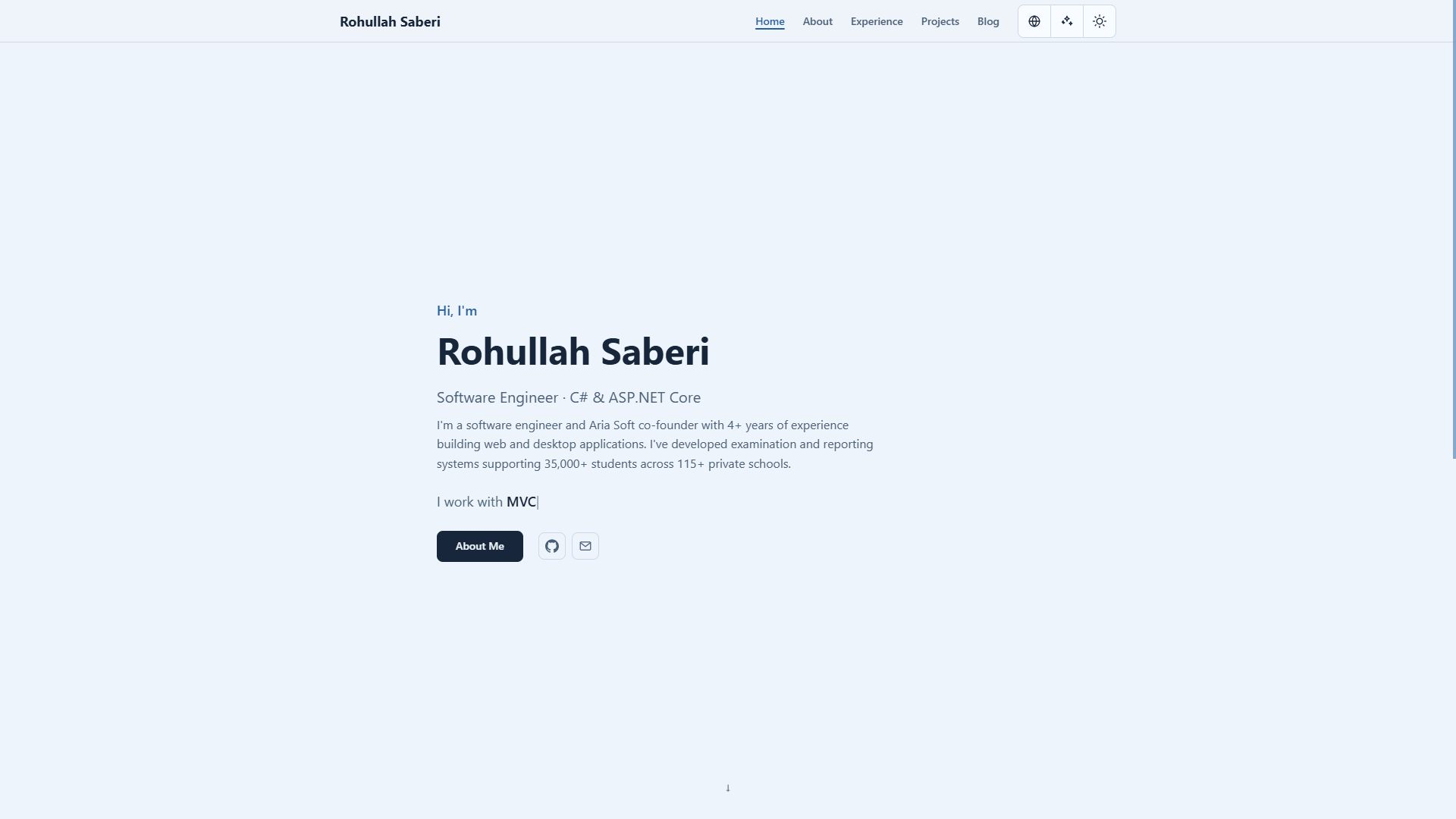
Finding your way around
The main menu connects five sections:
- Home gives you an introduction and a brief look at my background, experience, and education.
- About contains a fuller biography, education and achievements, and grouped skills. The homepage’s “I work with…” text also links to the skills section.
- Experience lists my roles. Open a role card to read more about the work and responsibilities behind it.
- Projects collects individual case studies. Open a project to see its purpose, features, technology, and my contribution.
- Blog is where you will find articles like this one. Each entry includes a summary and publication date before you open the full article.
Select my name in the header to return to the homepage. At the end of an article, you can also return to its beginning and use Back to blog above the title. The email link in the footer opens your mail application; the GitHub links take you to GitHub.
On a phone
The desktop links become a menu button. Open it to see the same five sections, with Language, Background, and Theme below them under Settings. Select a page to navigate, or use the close button to return to your current page. The appearance controls are still available; they have simply moved into the menu.
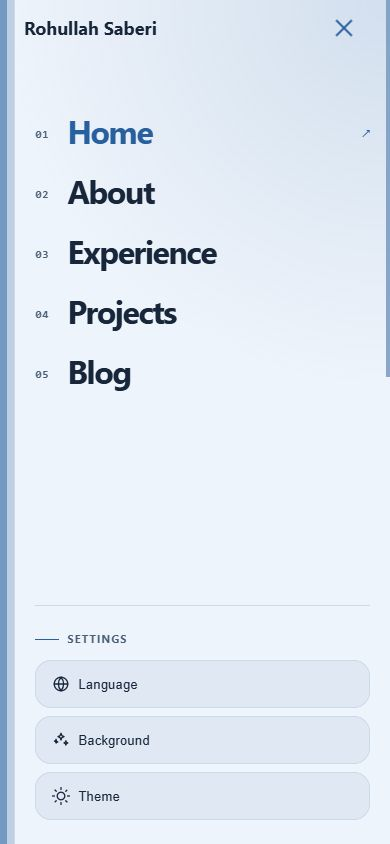
Switching between English and Persian
Open the globe button, or Language in the mobile menu, then select English or فارسی. When a translated version of your current page is available, the switch opens that version. This article is available in both languages, so you can compare the same instructions without searching for the article again.
Persian pages use a right-to-left layout. Navigation, text alignment, and the settings panel follow that direction. Product names and some technical terms keep their familiar spelling. If a page has no translation, the language switch takes you to the other language’s homepage.
Your appearance choices carry across the two languages. Switching language does not require you to pick your palette or background again.
Three ways to change the appearance
The controls work together, but they change different things:
| Control | What it changes | Where to find it |
|---|---|---|
| Theme | Light or dark mode for the plain background. | The sun or moon button; Theme on mobile. |
| Color palette | Coordinated colors for the page, text, links, and controls. | Inside Background, below the background choices, while None is selected. |
| Background | A plain view or an animated visual style, with settings for the selected effect. | The sparkle button; Background on mobile. |
An animated background also supplies its own dark color scheme. While one is selected, the light/dark button is disabled and the palette controls are replaced by that effect’s settings. Select None to use the theme button and palettes again. Your previous plain-background choices are preserved.
Light, dark, and color palettes
On a fresh visit, the plain view follows your device’s light or dark preference. Once you use the theme button, the website remembers the mode you choose. The button switches directly between light and dark; there is no separate settings page to save it.
To change the palette:
- Open Background.
- Select None at the top of the list.
- Scroll inside the panel to Color palette. The panel has its own scrolling area, so the palette may be below the visible background choices.
- Select Default, Nordic, Teal, Violet, Amber, or Rose.
- Close the panel and continue reading. The colors change immediately.
Each palette works with light and dark mode and applies across the website. Reset palette returns to Default. It does not change your selected light/dark mode.
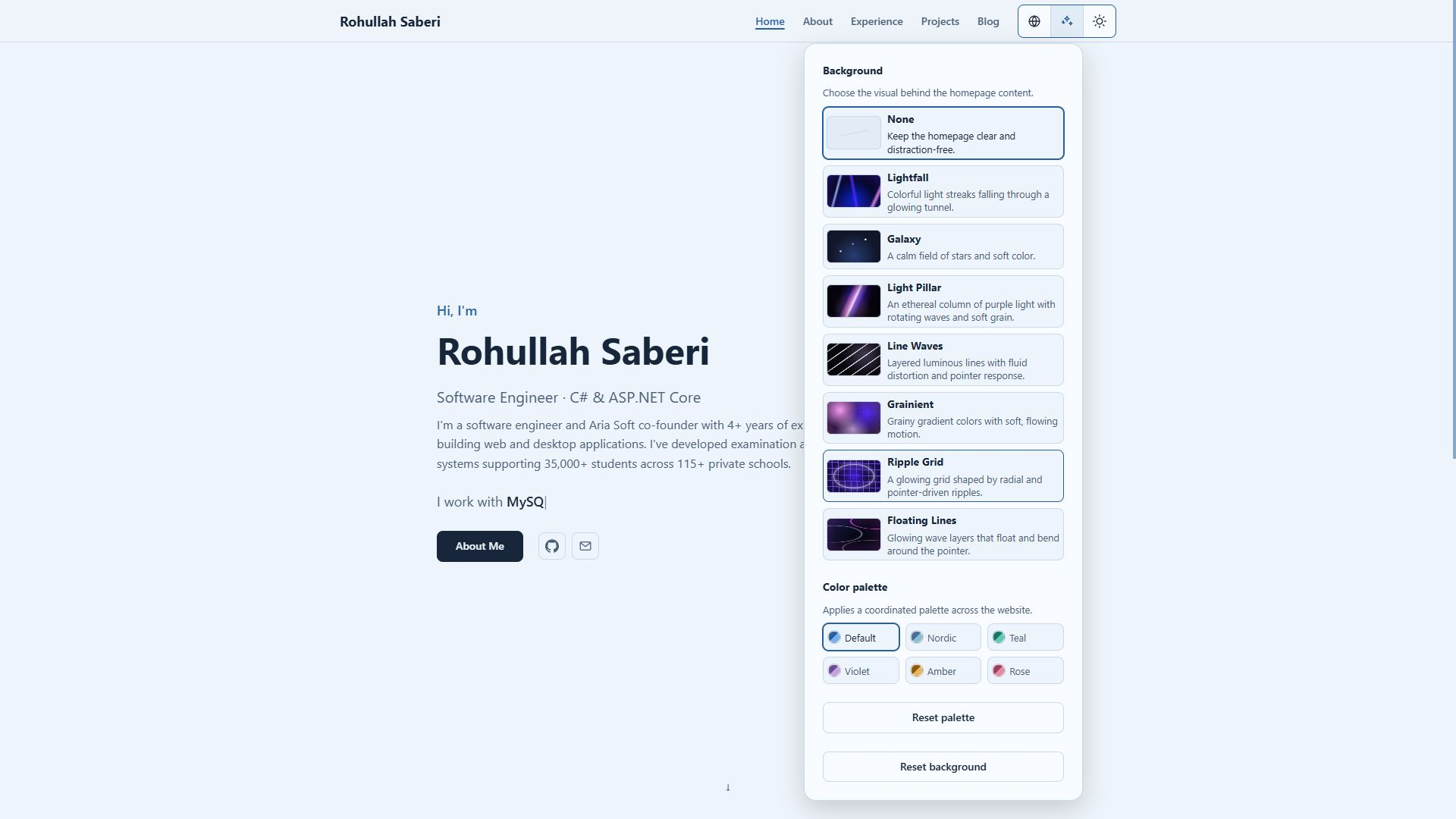
Choosing a background
Open Background and select a preview. There are eight choices: the plain view plus seven animated effects. The selected option is marked in the list, and its settings appear underneath.
| Background | What you will see |
|---|---|
| None | A plain page with your chosen light/dark mode and palette. |
| Lightfall | Colorful light streaks moving through a tunnel-like field. |
| Galaxy | Stars, soft glow, and a sense of depth. |
| Light Pillar | A luminous pillar with moving waves and grain. |
| Line Waves | Layers of bright lines that form flowing patterns. |
| Grainient | Blended, moving colors with a textured finish. |
| Ripple Grid | A grid shaped by ripples and waves. |
| Floating Lines | Sweeping layers of lines that bend and move. |
Some effects respond to your pointer as well as their own animation. You can adjust that response where the effect provides the option. Scroll down the list if Floating Lines is outside the visible part of the panel.
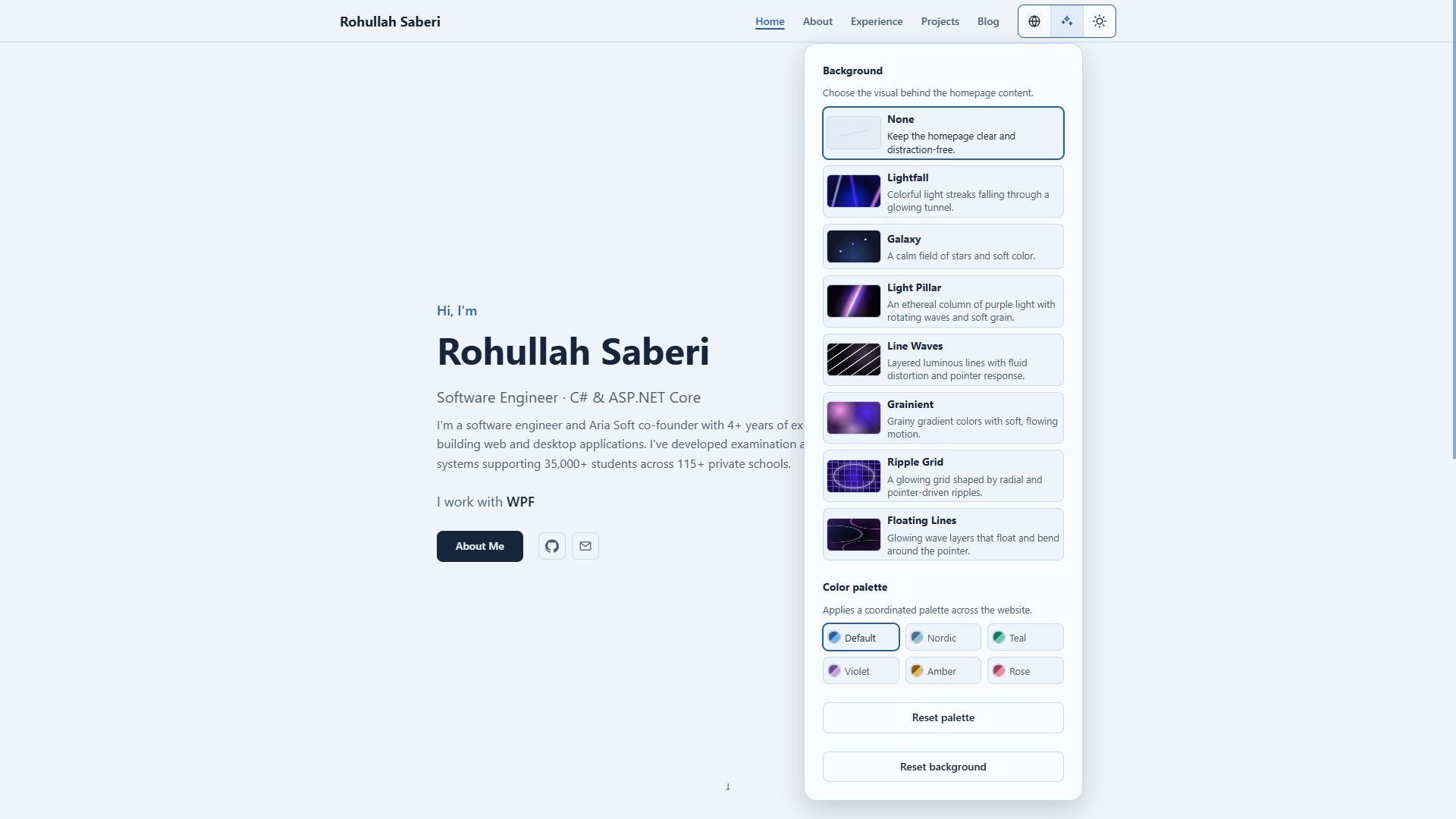
Where the animation appears
The moving visual appears on the homepage. Other pages keep the selected background’s colors, while their reading area stays static. If you choose Galaxy while reading a project or article, return to Home to see the star field. You can still adjust or reset the background from the other pages.
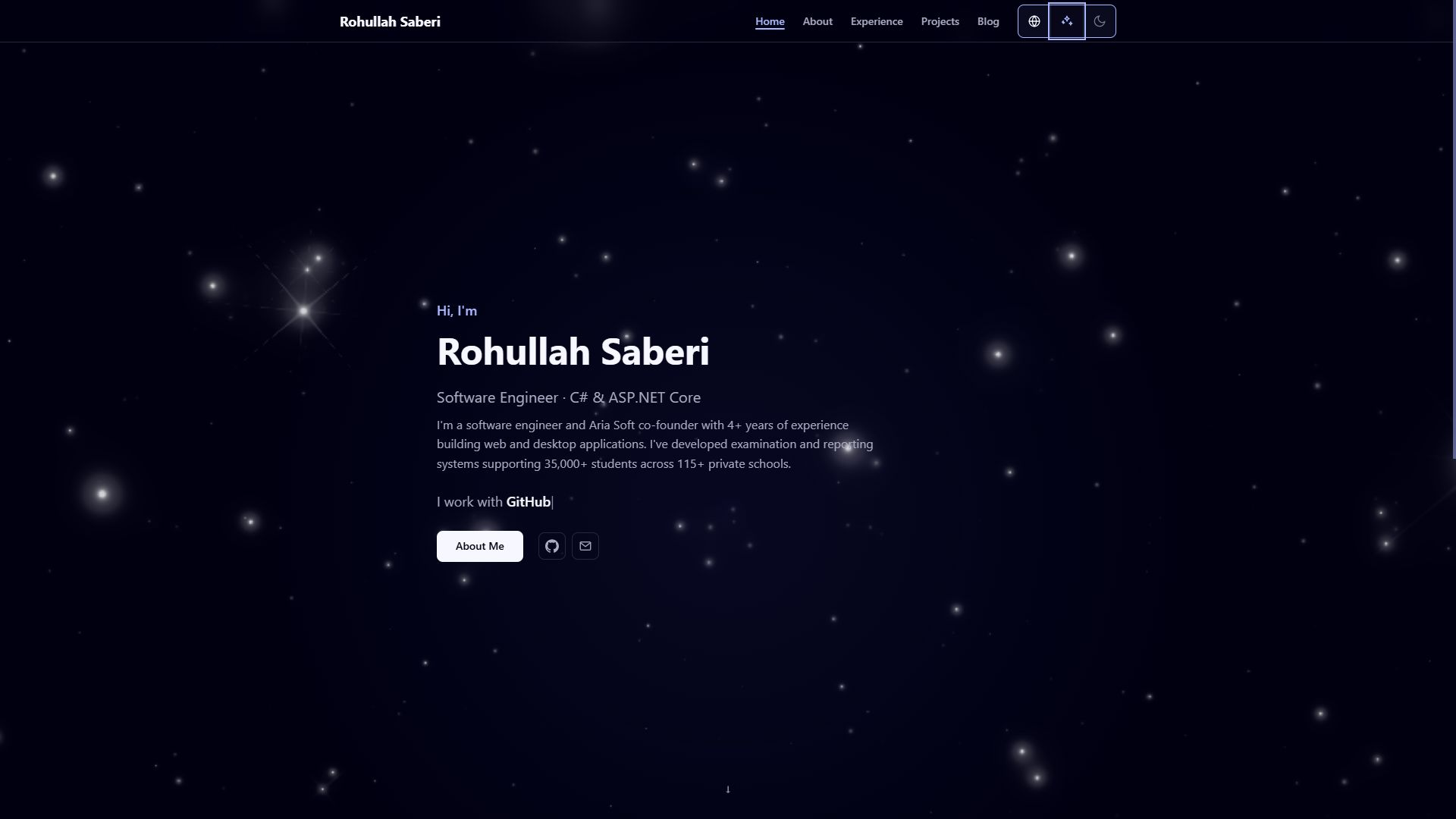
Fine-tuning an effect
After selecting an animated background, scroll below the previews to its controls. The available options depend on the effect. You might find motion speed, brightness, density, colors, position, or pointer interaction. A color control changes a particular effect’s colors; it is separate from the plain view’s six palettes.
Changes appear live, and slider values are shown beside their labels. Try adjusting one setting at a time so you can see what it changes. You do not need to press a Save button.
Example: a calmer Galaxy
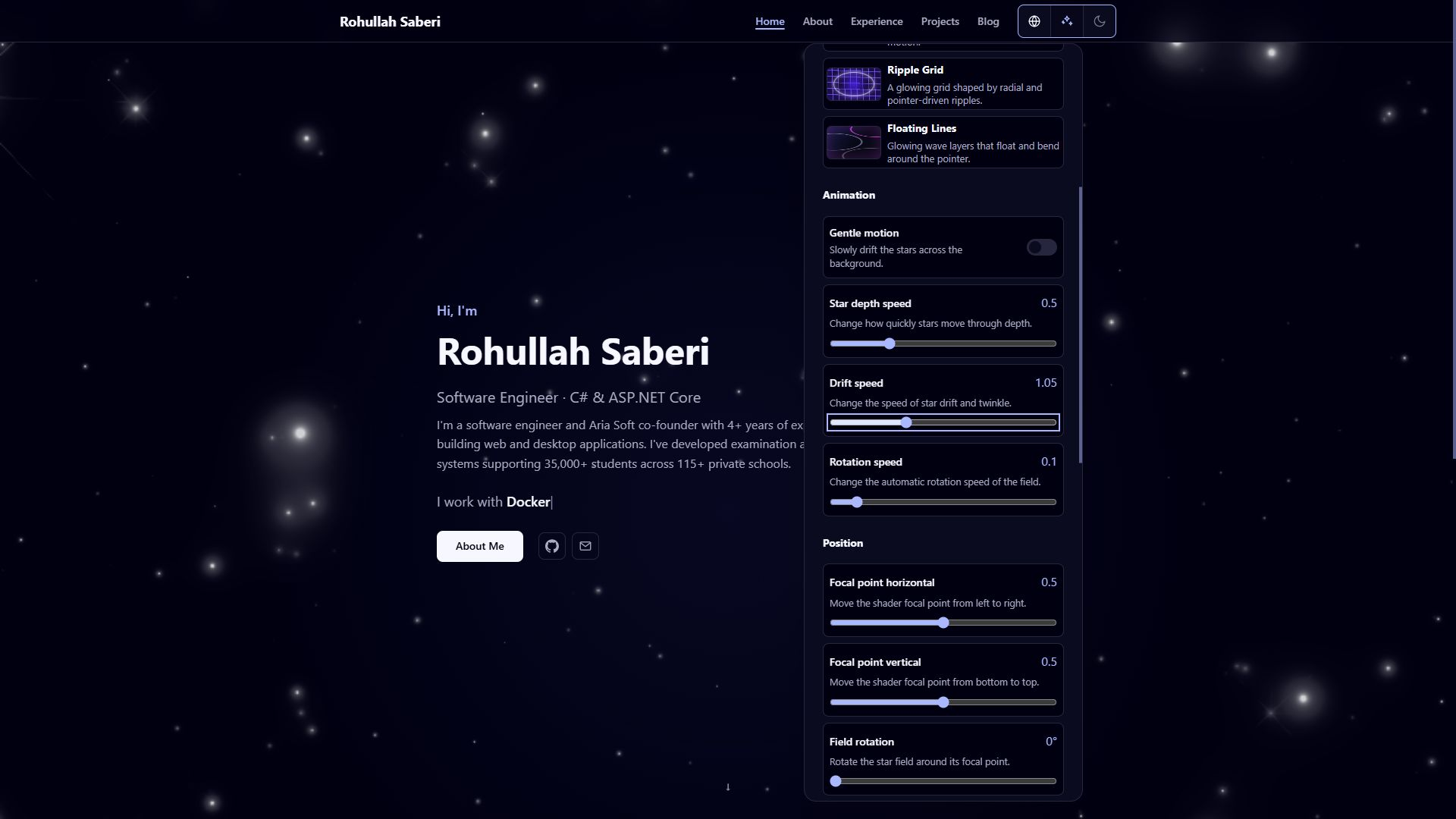
- Select Galaxy and scroll to Animation.
- Reduce Drift speed for slower movement. Star depth speed and Rotation speed control other parts of the motion.
- Turn off Gentle motion if you prefer the stars without their continuous animation.
- Further down, adjust Glow intensity or Density to change the brightness and number of stars.
- If you also want to remove the pointer response, turn off the pointer interaction options, including Pointer repulsion and Mouse repulsion. Turning off Gentle motion alone does not turn those interactions off.
You can also adjust the focal point to move the center of the effect. The screenshot below shows the motion controls with Gentle motion turned off; the values are an example, rather than a required preset.
Saved settings and resets
Appearance preferences are stored locally in your browser. They stay with you as you move between pages, switch languages, or reload. They are not an account profile and do not automatically transfer to another browser or device. Clearing this website’s browser data, or ending a private browsing session, may remove them.
There are two different reset buttons at the bottom of the panel:
- Reset palette selects Default for the plain view. It keeps your light/dark choice.
- Reset background returns to None and clears the saved custom settings for the animated backgrounds. Selecting an effect again starts it with its default settings. Your plain-view palette and light/dark choice remain available.
If you only want to pause your choice and read without animation, simply select None. Use Reset background when you also want to discard the custom effect settings.
Making the website comfortable to use
For longer articles, try None with the light or dark mode you find easiest to read. Default and Nordic are useful starting points; the other palettes let you add a little color without an animated background.
If you enjoy movement, start with one effect and lower its speed before changing several controls. Your device’s Reduce motion preference is also respected. You can always select None for a completely plain background.
You can use the website with a keyboard:
- Tab moves between links, buttons, and controls. The focused item has a visible outline.
- Enter activates links and buttons; Space also works on buttons and checkboxes.
- Arrow keys adjust a focused slider. Background choices also support keyboard selection.
- Escape closes an open menu or appearance panel. Clicking outside the background panel closes it too.
On a touchscreen, there is no hovering mouse pointer, so pointer-driven details can feel different. The menu, background selection, sliders, and color controls remain the way to customize the view. Browser zoom can make text and controls larger when needed.
Answers to common questions
Why is the light/dark button unavailable?
An animated background is selected and controls the website’s colors. Open Background and select None. The theme button becomes available again.
Where did the color palettes go?
Palettes appear only with None selected. Choose it, then scroll down inside the Background panel. An animated choice shows its own settings in that space.
Why are there no moving stars on this article?
Animations are displayed on the homepage. This article keeps the chosen colors without a moving backdrop. Return to Home to preview the effect.
Why does an effect look still or fail to appear?
Check whether its motion switch is off or a speed is very low. Your device’s Reduce motion setting may also be active. Animated effects need browser graphics support; if that is unavailable, a plain fallback remains. Select None if you prefer a consistent reading view.
Why did my settings disappear on another device?
Preferences belong to the browser where you chose them. Set them again on the other device. Clearing site data or using private browsing can also remove saved choices.
How do I undo an experiment with the sliders?
Choose Reset background to clear custom effect settings and return to None. Then select the effect again to begin with its defaults. This resets all saved background customizations, so use None instead if you want to keep them.
Can I read the guide in Persian?
Yes. Use the language control to open the Persian version of this article, complete with screenshots of the Persian interface. The same controls and appearance choices are available in both languages.
Ready to explore? Start with the project case studies, read my professional experience, or return to Home to try a different appearance.